I Built a Native Mac App That Compresses PDFs to Exact File Sizes
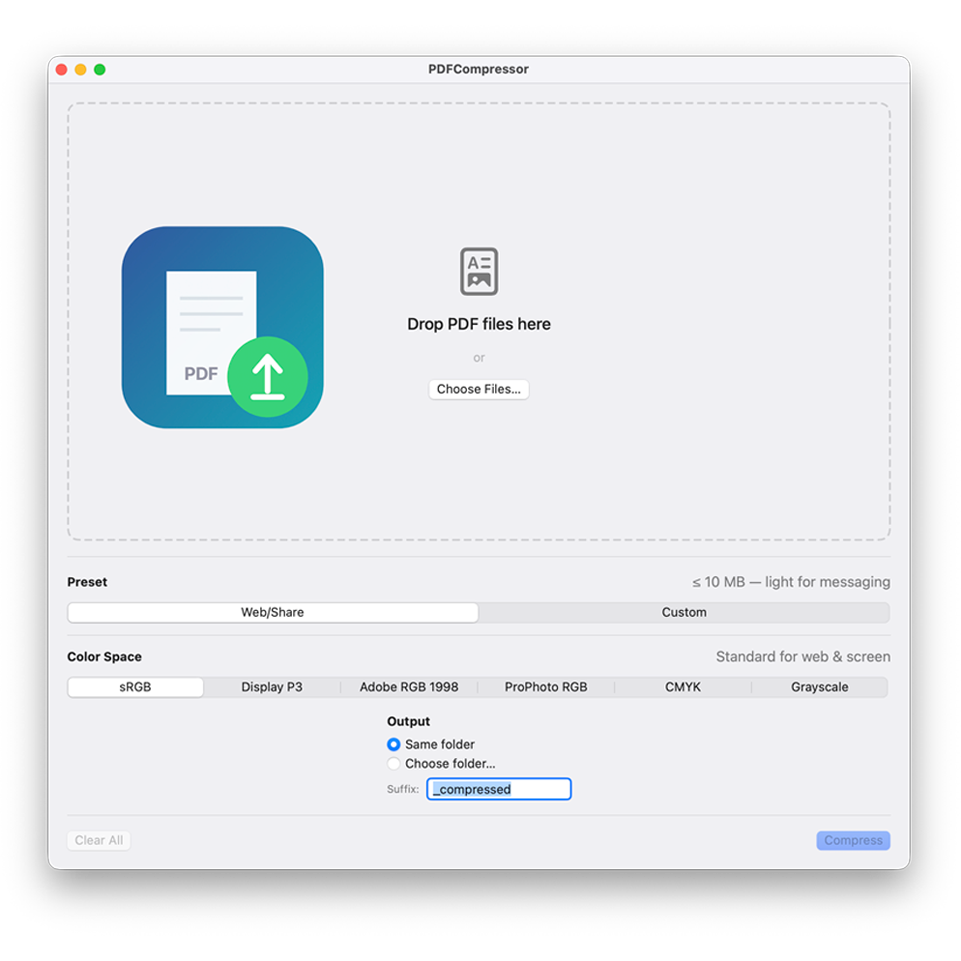
I work with large PDFs all the time — design files, documents with high-res images, InDesign exports. Sending them via email is always a hassle because most providers cap attachments at 25 MB, and some have even lower limits. These files are usually way over that because of the images.
Adobe Acrobat’s compression is buggy, slow, and annoying. Exporting from InDesign is even worse — you pick a compression quality, export the whole file, check if it hits the target size, and if it doesn’t, you go back, tweak the quality, and export again. I just need something that lets me quickly send out a PDF without wasting time. Most PDF compressors aren’t much better — they give you a vague quality slider and hope for the best, and a lot of them cost money. Why pay for mediocre apps in 2026 when you can vibe code it?
I just wanted something quick: drop it in, pick a size, done. So I built it.
What PDFCompressor Does
PDFCompressor is a native macOS app that compresses PDFs to exact target file sizes. You drop files in, pick a preset or set your own target, and get output that matches within a few percent.
It works by rendering each page to a bitmap, then using a per-page byte budget system — binary-searching JPEG quality for every page individually until the total adds up to exactly the target size. The raw JPEG data goes straight into the PDF via DCTDecode, so nothing gets re-compressed.
Features
- Web/Share preset — one click to compress to 10 MB, ready for email, messaging apps, Slack, Discord
- Custom target — set any target size from 1-100 MB with quality and size sliders, because most free hosters have a 100 MB file size limit these days
- Drag and drop — drop PDFs anywhere on the window, even while compressing
- Batch processing — compress multiple files at once with parallel processing
- Per-page adaptive compression — each page gets the highest quality that fits its byte budget
- Color space control — output in sRGB, Display P3, Adobe RGB, ProPhoto RGB, CMYK, or Grayscale, so people can view files in the correct color space and there are no big color shifts
- Auto color space detection — each file shows its detected color space before compression
- Click to reveal — click any file name or compressed output to find it in Finder
- Retry — re-compress finished files with different settings, individually or all at once
- Custom output — choose the output folder and filename suffix
- Compression ratio — see exactly how much smaller each file got
How the Compression Works
The key insight that made this work: you can’t use CGContext.draw() to write JPEG images into a PDF, because Core Graphics silently re-compresses the data. A carefully-sized 500 KB JPEG becomes 50 KB in the output.
The solution is writing raw JPEG bytes directly into the PDF as DCTDecode image XObjects. The bytes you measure are the exact bytes in the output file.
The algorithm:
- Calculate a per-page byte budget:
target size / page count - Sample a page to estimate the right rendering DPI
- Render each page to a bitmap at the estimated DPI (done once per page)
- Binary-search JPEG quality per page (5-6 iterations, fast — just re-encoding the same bitmap)
- If max quality at current DPI is under budget, increase DPI and re-render to fill the space
- Write raw JPEG data into the PDF with DCTDecode filter
This guarantees the output hits the target because every page is measured individually.
Color Spaces
Most compressors force everything into sRGB and call it a day. PDFCompressor lets you pick the output color space — useful if you’re working with photography, print, or wide-gamut displays.
| Color Space | Best For |
|---|---|
| sRGB | Web, email, general use (default) |
| Display P3 | Modern Apple displays, wide gamut |
| Adobe RGB | Photography and prepress |
| ProPhoto | Professional editing, widest gamut |
| CMYK | Print and prepress output |
| Grayscale | Black and white documents |
The app auto-detects the color space of each input file and shows it as a badge, so you know what you’re working with before you compress.
Compatibility
Requires macOS 14 Sonoma or later. The app is a universal binary, so it runs natively on both Apple Silicon and Intel Macs.
MacBook Air
- MacBook Air (Retina, 13-inch, 2018)
- MacBook Air (Retina, 13-inch, 2019)
- MacBook Air (Retina, 13-inch, 2020)
- MacBook Air (M1, 2020)
- MacBook Air (M2, 2022)
- MacBook Air (15-inch, M2, 2023)
- MacBook Air (M3, 2024)
- MacBook Air (15-inch, M3, 2024)
- MacBook Air (M4, 2025)
- MacBook Air (15-inch, M4, 2025)
MacBook Pro
- MacBook Pro (13-inch, 2018)
- MacBook Pro (15-inch, 2018)
- MacBook Pro (13-inch, 2019)
- MacBook Pro (15-inch, 2019)
- MacBook Pro (16-inch, 2019)
- MacBook Pro (13-inch, 2020)
- MacBook Pro (13-inch, M1, 2020)
- MacBook Pro (14-inch, M1 Pro/Max, 2021)
- MacBook Pro (16-inch, M1 Pro/Max, 2021)
- MacBook Pro (13-inch, M2, 2022)
- MacBook Pro (14-inch, M2 Pro/Max, 2023)
- MacBook Pro (16-inch, M2 Pro/Max, 2023)
- MacBook Pro (14-inch, M3/Pro/Max, 2023)
- MacBook Pro (16-inch, M3 Pro/Max, 2023)
- MacBook Pro (14-inch, M4/Pro/Max, 2024)
- MacBook Pro (16-inch, M4 Pro/Max, 2024)
Mac mini
- Mac mini (2018)
- Mac mini (M1, 2020)
- Mac mini (M2/M2 Pro, 2023)
- Mac mini (M4/M4 Pro, 2024)
Mac Studio
- Mac Studio (M1 Max/Ultra, 2022)
- Mac Studio (M2 Max/Ultra, 2023)
- Mac Studio (M4 Max/Ultra, 2025)
Mac Pro
- Mac Pro (2019)
- Mac Pro (M2 Ultra, 2023)
- Mac Pro (M4 Ultra, 2025)
iMac
- iMac Pro (2017)
- iMac (Retina 4K, 21.5-inch, 2019)
- iMac (Retina 5K, 27-inch, 2019)
- iMac (Retina 5K, 27-inch, 2020)
- iMac (24-inch, M1, 2021)
- iMac (24-inch, M3, 2023)
- iMac (24-inch, M4, 2024)
Not Compatible
- Macs that can’t run macOS 14 Sonoma (most models from 2017 or earlier)
- iPad, iPhone, Apple Watch, Apple TV, Apple Vision Pro
- Windows or Linux
Download
You can download PDFCompressor for free. If you run into any problems, I can update the app — just write me a message on the contact page.
Installation
Since Apple charges $99/year to sign apps with a Developer ID, PDFCompressor is unsigned. macOS will show a “damaged and can’t be opened” warning — this doesn’t mean the app is actually damaged, it’s just Gatekeeper blocking any app that isn’t signed through Apple’s program.
To install it, open Terminal and run this command:
xattr -cr ~/Downloads/PDFCompressor.appThis removes the quarantine flag that macOS adds to every file you download from the internet. After running the command, the app will open normally.
Step by step:
- Download and unzip
PDFCompressor.zipfrom above - Open Terminal (search for “Terminal” in Spotlight or find it in Applications → Utilities)
- Paste the command above and press Enter
- Open PDFCompressor — it should launch without any warnings