A Free Mac App That Batch Converts Images to WebP
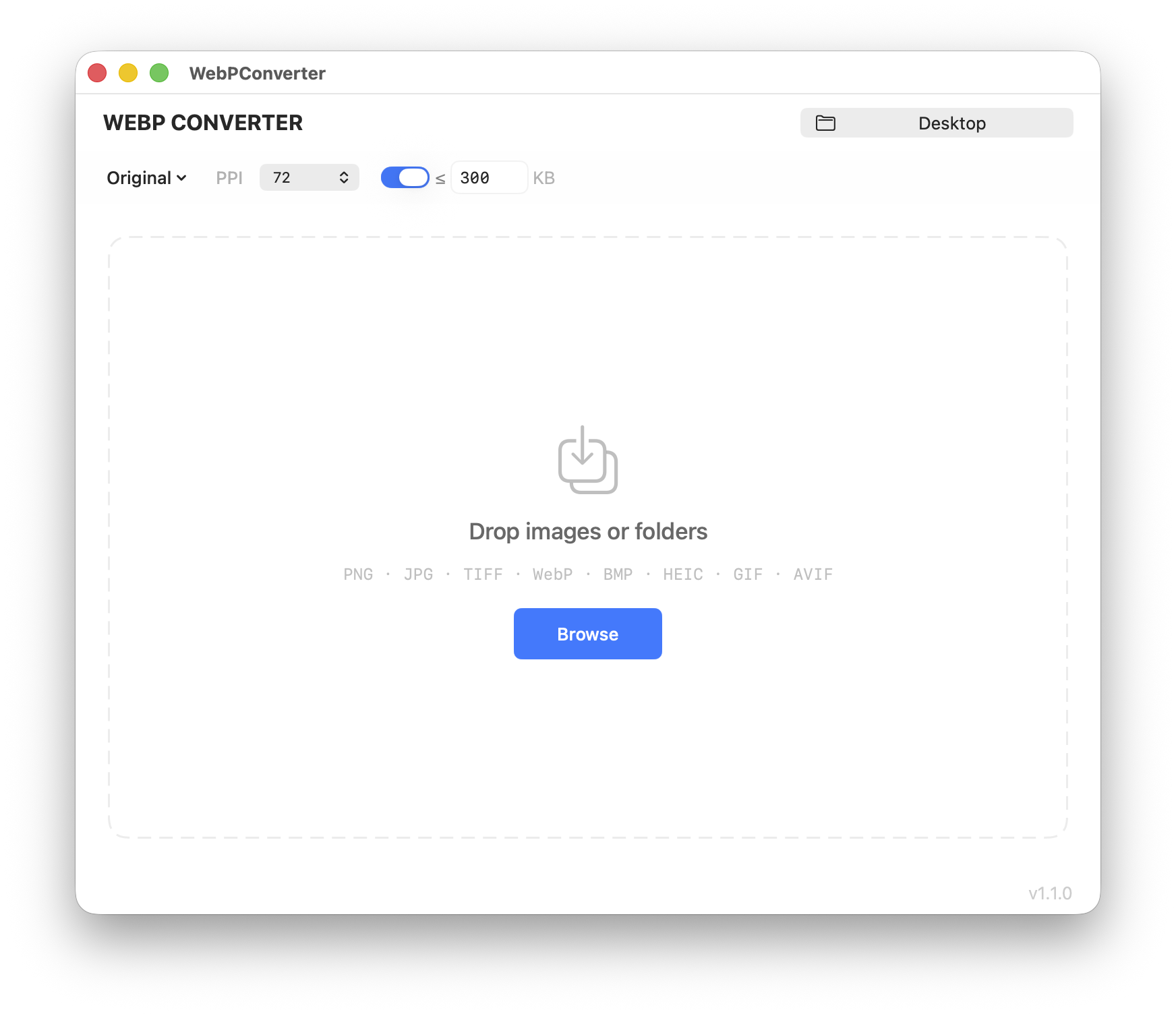
I upload product images to Shopify regularly, and Shopify recommends WebP because it loads faster and keeps page speed scores high — which directly affects SEO and conversion rates. PNG and JPEG files are usually 3-5x larger than WebP at the same visual quality, so every image that isn’t WebP is just wasted bandwidth. Built with SwiftUI, vibe coded with Claude.
But converting images one by one is tedious, and most online converters have file limits, strip your settings, or just give you whatever quality they feel like. I needed something that could batch convert entire folders and let me set a KB limit so every image is as small as possible while still looking sharp. Drop images in, pick a size, done. So I built it.
Every image is converted to sRGB during the process — no matter what color space the source file uses (Display P3, Adobe RGB, CMYK, etc.), the output is always sRGB. This is intentional because the web runs on sRGB, and Shopify, browsers, and most screens expect it. Why pay for image converters in 2026 when you can vibe code it with Claude?
What WebPConverter Does
WebPConverter is a native macOS app that batch converts images to WebP format. You drop files or entire folders in, pick a resolution preset, set a file size limit or quality level, and hit convert. It handles PNG, JPG, TIFF, WebP, BMP, HEIC, GIF, and AVIF.
It uses cwebp under the hood — the official WebP encoder from Google — with multi-threading and maximum compression passes for the best quality-to-size ratio.
Features
- Batch conversion — drop hundreds of images or whole folders, convert them all at once with parallel processing
- Custom resolution presets — create named presets like “Blog 1360x900” or “Thumbnail 440x352” and switch between them instantly
- Original size mode — keep the original dimensions, just convert the format
- PPI control — set output PPI to 72, 96, 150, 300, or any custom value
- File size limit — toggle a max file size in KB and the encoder will hit that target automatically
- Quality slider — when size limit is off, set exact quality from 1-100%
- Drag and drop — drop images or folders anywhere on the window, even while converting
- Browse button — pick files or folders with a file picker
- Select/deselect files — check or uncheck individual files, select all, or deselect all before converting
- Cancel anytime — stop a batch mid-conversion, remaining files get marked as cancelled
- Collision-safe naming — if a file already exists in the output folder, it adds
_1,_2, etc. instead of overwriting - Click to open — click any converted file to reveal it in Finder
- Progress tracking — see completed, failed, and cancelled counts with a progress bar
- Output folder picker — choose where converted files go, remembered between sessions
- Settings persistence — presets, PPI, quality, and size limit are saved automatically
- Metadata stripping — all EXIF and metadata is stripped from output files for smaller sizes and privacy
- Alpha channel support — images with transparency are converted with alpha preservation
Supported Formats
| Input Format | Extensions |
|---|---|
| PNG | .png |
| JPEG | .jpg, .jpeg, .jfif |
| TIFF | .tiff, .tif |
| WebP | .webp |
| BMP | .bmp |
| HEIC | .heic, .heif |
| GIF | .gif |
| AVIF | .avif |
Compatibility
Requires macOS 13 Ventura or later. The app is a universal binary, so it runs natively on both Apple Silicon and Intel Macs.
MacBook Air
- MacBook Air (Retina, 13-inch, 2018)
- MacBook Air (Retina, 13-inch, 2019)
- MacBook Air (Retina, 13-inch, 2020)
- MacBook Air (M1, 2020)
- MacBook Air (M2, 2022)
- MacBook Air (15-inch, M2, 2023)
- MacBook Air (M3, 2024)
- MacBook Air (15-inch, M3, 2024)
- MacBook Air (M4, 2025)
- MacBook Air (15-inch, M4, 2025)
MacBook Pro
- MacBook Pro (13-inch, 2017)
- MacBook Pro (15-inch, 2017)
- MacBook Pro (13-inch, 2018)
- MacBook Pro (15-inch, 2018)
- MacBook Pro (13-inch, 2019)
- MacBook Pro (15-inch, 2019)
- MacBook Pro (16-inch, 2019)
- MacBook Pro (13-inch, 2020)
- MacBook Pro (13-inch, M1, 2020)
- MacBook Pro (14-inch, M1 Pro/Max, 2021)
- MacBook Pro (16-inch, M1 Pro/Max, 2021)
- MacBook Pro (13-inch, M2, 2022)
- MacBook Pro (14-inch, M2 Pro/Max, 2023)
- MacBook Pro (16-inch, M2 Pro/Max, 2023)
- MacBook Pro (14-inch, M3/Pro/Max, 2023)
- MacBook Pro (16-inch, M3 Pro/Max, 2023)
- MacBook Pro (14-inch, M4/Pro/Max, 2024)
- MacBook Pro (16-inch, M4 Pro/Max, 2024)
Mac mini
- Mac mini (2018)
- Mac mini (M1, 2020)
- Mac mini (M2/M2 Pro, 2023)
- Mac mini (M4/M4 Pro, 2024)
Mac Studio
- Mac Studio (M1 Max/Ultra, 2022)
- Mac Studio (M2 Max/Ultra, 2023)
- Mac Studio (M4 Max/Ultra, 2025)
Mac Pro
- Mac Pro (2019)
- Mac Pro (M2 Ultra, 2023)
- Mac Pro (M4 Ultra, 2025)
iMac
- iMac Pro (2017)
- iMac (Retina 4K, 21.5-inch, 2017)
- iMac (Retina 5K, 27-inch, 2017)
- iMac (Retina 4K, 21.5-inch, 2019)
- iMac (Retina 5K, 27-inch, 2019)
- iMac (Retina 5K, 27-inch, 2020)
- iMac (24-inch, M1, 2021)
- iMac (24-inch, M3, 2023)
- iMac (24-inch, M4, 2024)
Not Compatible
- Macs that can’t run macOS 13 Ventura (most models from 2016 or earlier)
- iPad, iPhone, Apple Watch, Apple TV, Apple Vision Pro
- Windows or Linux
Download
You can download WebPConverter for free. If you run into any problems, I can update the app — just write me a message on the contact page.
Installation
WebPConverter requires cwebp (Google’s official WebP encoder) — without it, the app won’t convert anything. Install it with these two Terminal commands:
First, install Homebrew (a package manager for Mac) if you don’t have it yet:
/bin/bash -c "$(curl -fsSL https://raw.githubusercontent.com/Homebrew/install/HEAD/install.sh)"Then install cwebp:
brew install webpSince Apple charges $99/year to sign apps with a Developer ID, WebPConverter is unsigned. macOS will show a “damaged and can’t be opened” warning — this doesn’t mean the app is actually damaged, it’s just Gatekeeper blocking any app that isn’t signed through Apple’s program.
To install it, open Terminal and run this command:
xattr -cr ~/Downloads/WebPConverter.appThis removes the quarantine flag that macOS adds to every file you download from the internet. After running the command, the app will open normally.
Step by step:
- Download and unzip
WebPConverter.zipfrom above - Open Terminal (search for “Terminal” in Spotlight or find it in Applications → Utilities)
- Paste the commands above and press Enter
- Open WebPConverter — it should launch without any warnings